Setup
Add the latest package of the androidx.webgpu release to the app module’s build.gradle.kts:
dependencies {
    implementation("androidx.webgpu:webgpu:1.0.0-alpha01")
}
Check the project: https://github.com/shubham0204/Experiments/tree/main/androidx-webgpu-api-demo
Get GPU Device Info
To start exploring the WebGPU API, we write a method that retrieves the details of the underlying GPU device that is visible to the API:
import androidx.webgpu.helper.createWebGpu

class WebGPUComputeShader {

    private val webGpu = runBlocking { createWebGpu() }

    fun getGPUDeviceInfo(): AdapterInfo = runBlocking {
        val adapter = webGpu.instance.requestAdapter()
        return@runBlocking adapter.getInfo()
    }
}
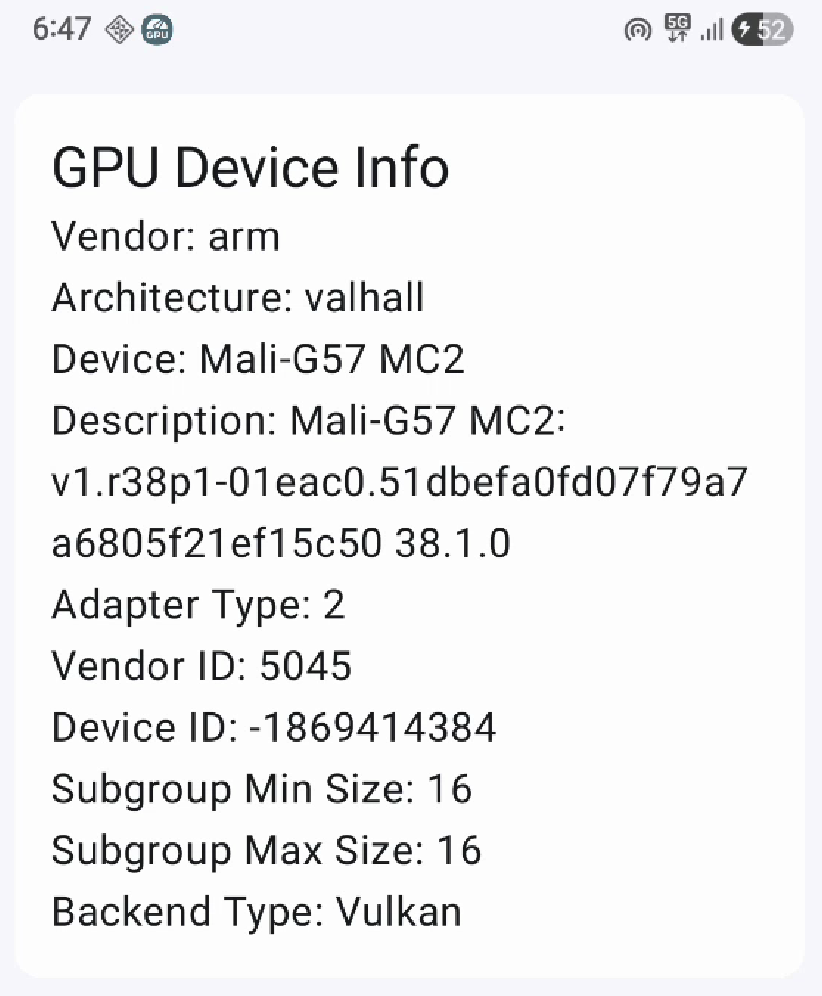
The WebGPU adapter (of type GPUAdapter) observed above identifies an underlying GPUDevice present in the system. The GPUAdapter can be used to request a GPUDevice, get information about the device i.e. get GPUAdapterInfo or access the features and limits of the device. In the demo app, the adapter-info looks like this:
Writing a Compute Shader
INFO
Recommended Reading:
To execute a program on the GPU with the WebGPU API, we need to write the program in WGSL (WebGPU Shader Language). WGSL is a high-level language used to express parallel computation by defined typed variables, routines and common Math functions.
The shader operates on a collection of vectors stored as a flat array and computes a symmetric similarity matrix. Each GPU thread (a total of 16 * 16 = 256 parallel threads) processes one pair of vectors identified by 2D coordinates (i, j), but only computes the upper triangle of the matrix to avoid redundant work since cosine similarity is symmetric.
For each pair, the shader iterates through all dimensions to simultaneously compute three values: the dot product of the two vectors, and the squared norms of each vector.
It then calculates cosine similarity as the dot product divided by the product of the vector magnitudes (square roots of the norms), with a safety check to prevent division by zero.
The computed similarity value is written to both (i, j) and (j, i) positions in the output array, ensuring the full symmetric matrix is populated even though only half the comparisons are performed.
struct Params {
  numVectors: u32,
  dimension: u32,
}

@group(0) @binding(0) var<storage, read> vectors: array<f32>;
@group(0) @binding(1) var<storage, read_write> similarities: array<f32>;
@group(0) @binding(2) var<uniform> params: Params;

@compute @workgroup_size(16, 16)
fn main(@builtin(global_invocation_id) global_id: vec3<u32>) {
  let i = global_id.x;
  let j = global_id.y;
  let n = params.numVectors;
  let d = params.dimension;

  // Only compute upper triangle (including diagonal)
  if (i >= n || j >= n || i > j) {
    return;
  }

  var dotProduct: f32 = 0.0;
  var normA: f32 = 0.0;
  var normB: f32 = 0.0;

  // Compute dot product and norms
  for (var k: u32 = 0u; k < d; k = k + 1u) {
    let a = vectors[i * d + k];
    let b = vectors[j * d + k];
    dotProduct += a * b;
    normA += a * a;
    normB += b * b;
  }

  // Calculate cosine similarity
  let denominator = sqrt(normA) * sqrt(normB);
  var similarity: f32 = 0.0;

  if (denominator > 0.0) {
    similarity = dotProduct / denominator;
  }

  // Store in both positions for symmetric matrix
  similarities[i * n + j] = similarity;
  similarities[j * n + i] = similarity;
}
GPU Buffers
INFO
Recommended Reading:
Execution on a GPU device requires memory regions to store inputs and outputs of the program. These memory regions are represented with a GPUBuffer. We load data into a GPUBuffer, the GPU performs the computation using the data and writes the outputs to another GPUBuffer.
We create a GPUBuffer instance using a GPUBufferDescriptor where we provide a label, size and usage. For the buffer holding the input vectors, we need to set the COPY_DST flag as the input vectors will be copied to the buffer from Kotlin code. A STORAGE buffer, like the one needed for the input vectors, allows read/write operations and has a larger capacity.
@SuppressLint("RestrictedApi")
private fun createVectorsBuffer(
    device: GPUDevice,
    numVectors: Long,
    vectorDims: Long,
): GPUBuffer {
    return device.createBuffer(
        BufferDescriptor(
            label = "vectors",
            size = numVectors * vectorDims * 4,
            usage = BufferUsage.Storage or BufferUsage.CopyDst,
            mappedAtCreation = false,
        )
    )
}
A UNIFORM buffer is ideal to store parameters required for the shader. It has a smaller capacity and is read-only for the shader. See the definition of the struct Params to observe why the size of params buffer is 8 bytes.
@SuppressLint("RestrictedApi")
private fun createParamsBuffer(device: GPUDevice): GPUBuffer {
    return device.createBuffer(
        BufferDescriptor(
            label = "params",
            size = 8,
            usage = BufferUsage.Uniform or BufferUsage.CopyDst,
            mappedAtCreation = false,
        )
    )
}
The buffer which stores the cosine similarities between the vectors i.e. the results of our GPU computation is also a STORAGE | COPY_SRC buffer,
@SuppressLint("RestrictedApi")
private fun createSimilaritiesBuffer(device: GPUDevice, numVectors: Long): GPUBuffer {
    return device.createBuffer(
        BufferDescriptor(
            label = "similarities",
            size = numVectors * numVectors * 4,
            usage = BufferUsage.Storage or BufferUsage.CopySrc,
            mappedAtCreation = false,
        )
    )
}
Although the similarities buffer above will hold the results of the computation, it is a STORAGE buffer that cannot be mapped to the host program. A MAP_READ type of buffer can be accessed by the host program i.e. on the CPU. Hence, we create another buffer that would provide us the results of our computation:
@SuppressLint("RestrictedApi")
private fun createResultsBuffer(device: GPUDevice, numVectors: Long): GPUBuffer {
    return device.createBuffer(
        BufferDescriptor(
            label = "results",
            size = numVectors * numVectors * 4,
            usage = BufferUsage.MapRead or BufferUsage.CopyDst,
            mappedAtCreation = false,
        )
    )
}
GPU Bind Groups
INFO
Recommended Reading:
To associate these buffers with the shader, we define a GPUBindGroup, where the visibility of each buffer, its type, and index within the group are mentioned. A visibility of ShaderStage.Compute ensures that the bind group entry is only visible to compute shaders.
@SuppressLint("RestrictedApi")
private fun createBindGroupLayout(device: GPUDevice): GPUBindGroupLayout {
    return device.createBindGroupLayout(
        BindGroupLayoutDescriptor(
            entries =
                arrayOf(
                    BindGroupLayoutEntry(
                        binding = 0,
                        visibility = ShaderStage.Compute,
                        buffer =
                            BufferBindingLayout(
                                type = BufferBindingType.ReadOnlyStorage,
                                hasDynamicOffset = false,
                                minBindingSize = 4,
                            ),
                    ),
                    BindGroupLayoutEntry(
                        binding = 1,
                        visibility = ShaderStage.Compute,
                        buffer =
                            BufferBindingLayout(
                                type = BufferBindingType.Storage,
                                hasDynamicOffset = false,
                                minBindingSize = 4,
                            ),
                    ),
                    BindGroupLayoutEntry(
                        binding = 2,
                        visibility = ShaderStage.Compute,
                        buffer =
                            BufferBindingLayout(
                                type = BufferBindingType.Uniform,
                                hasDynamicOffset = false,
                                minBindingSize = 8,
                            ),
                    ),
                )
        )
    )
}
Using the layout defined above, we create the GPUBindGroup. We use the bind-group when encoding commands for the compute pipeline in later steps.
private fun createBindGroup(
    device: GPUDevice,
    bindGroupLayout: GPUBindGroupLayout,
    vectorsBuffer: GPUBuffer,
    similaritiesBuffer: GPUBuffer,
    paramsBuffer: GPUBuffer,
): GPUBindGroup {
    return device.createBindGroup(
        BindGroupDescriptor(
            layout = bindGroupLayout,
            entries =
                arrayOf(
                    BindGroupEntry(binding = 0, buffer = vectorsBuffer),
                    BindGroupEntry(binding = 1, buffer = similaritiesBuffer),
                    BindGroupEntry(binding = 2, buffer = paramsBuffer),
                ),
        )
    )
}
GPU Compute Pipeline and Command Encoder
A GPUComputePipeline represents the sequence of steps performed by a compute shader module. The pipeline is defined with a GPUPipelineLayout that accepts a list of GPUBindGroupLayout. We refer the first element of bindGroupLayouts when using @group(0) in the WGSL script. The entryPoint contains the name of the function in the WGSL script from where the shader starts executing.
private fun createPipelineLayout(
    device: GPUDevice,
    bindGroupLayout: GPUBindGroupLayout,
): GPUPipelineLayout {
    return device.createPipelineLayout(
        PipelineLayoutDescriptor(bindGroupLayouts = arrayOf(bindGroupLayout))
    )
}

private fun createPipeline(
    device: GPUDevice,
    pipelineLayout: GPUPipelineLayout,
    shaderModule: GPUShaderModule,
): GPUComputePipeline {
    return device.createComputePipeline(
        ComputePipelineDescriptor(
            layout = pipelineLayout,
            compute = ComputeState(module = shaderModule, entryPoint = "main"),
        )
    )
}
We now have all components required to execute our WGSL script on the device’s GPU. We create a function, WGPUComputeShader.execute() that accepts vectors: Array<FloatArray> and a result callback function onComplete,
fun execute(vectors: Array<FloatArray>, onComplete: (Array<FloatArray>) -> Unit) = runBlocking {
    // 1. Load data into buffers
    // 2. Initialize pipeline
    // 3. Encode pipeline
    // 4. Submit to execution queue and wait for results
}
We populate the vectorsBuffer and paramsBuffer using elements from vectors and dimensions of vectors respectively. Note, device.queue.writeBuffer does not immediately write the buffer data to GPU-bound memory. The contents of the buffer are only transferred when device.queue.submit will be called.
val numVectors = vectors.size.toLong()
val vectorDims = vectors[0].size.toLong()
val vectorsBuffer = createVectorsBuffer(device, numVectors, vectorDims)
val paramsBuffer = createParamsBuffer(device)

val vectorsData = vectors.flatMap { it.toList() }
val vectorsByteBuffer =
    ByteBuffer.allocateDirect((numVectors * vectorDims * 4).toInt())
        .order(ByteOrder.nativeOrder())
vectorsData.forEach(vectorsByteBuffer::putFloat)
vectorsByteBuffer.flip()
device.queue.writeBuffer(vectorsBuffer, 0, vectorsByteBuffer)

val paramsByteBuffer = ByteBuffer.allocateDirect(8).order(ByteOrder.nativeOrder())
paramsByteBuffer.putInt(numVectors.toInt())
paramsByteBuffer.putInt(vectorDims.toInt())
paramsByteBuffer.flip()
device.queue.writeBuffer(paramsBuffer, 0, paramsByteBuffer)
Next, initialize the bind-groups and compute-pipeline,
val similaritiesBuffer = createSimilaritiesBuffer(device, numVectors)
val shaderModule =
    device.createShaderModule(
        ShaderModuleDescriptor(shaderSourceWGSL = ShaderSourceWGSL(code = code))
    )
val bindGroupLayout = createBindGroupLayout(device)
val bindGroup =
    createBindGroup(
        device,
        bindGroupLayout,
        vectorsBuffer,
        similaritiesBuffer,
        paramsBuffer,
    )
val pipelineLayout = createPipelineLayout(device, bindGroupLayout)
val pipeline = createPipeline(device, pipelineLayout, shaderModule)
For the GPU to execute our shader with the given data, we need to submit a GPUCommandBuffer to the execution queue. A command buffer is a list of commands that manipulate data or initiate routines. The command buffer is created with a GPUCommandEncoder that records operations and provides a GPUCommandBuffer when calling its finish() method. For instance, the copyBufferToBuffer operation is recorded and encoded into the command buffer.
Within the command buffer, to control the compute shader execution stage, we need a GPUComputeCommandEncoder to which we attach the pipeline and bind-group. We also set the work-group sizes along x, y and the z axes. A work-group comprises of threads that perform parallel execution on the given data.
val commandEncoder = device.createCommandEncoder(CommandEncoderDescriptor())
val computePass = commandEncoder.beginComputePass(ComputePassDescriptor())
computePass.setPipeline(pipeline)
computePass.setBindGroup(0, bindGroup)

val workGroupSize = ceil(numVectors.toFloat() / 16f).toInt()
computePass.dispatchWorkgroups(workGroupSize, workGroupSize, 1)
computePass.end()

val resultsBuffer = createResultsBuffer(device, numVectors)
commandEncoder.copyBufferToBuffer(
    similaritiesBuffer,
    0,
    resultsBuffer,
    0,
    similaritiesBuffer.size,
)

val commandBuffer = commandEncoder.finish()
device.queue.submit(arrayOf(commandBuffer))
Mapping a Buffer
GPUQueue i.e. device.queue.submit schedules the pipeline for execution on the GPU device. To read the results, we use the resultsBuffer.mapAsync method that informs us when the contents of resultsBuffer have been mapped i.e. ready for use.
resultsBuffer.mapAsync(
    MapMode.Read,
    0,
    resultsBuffer.size,
    executor,
    BufferMapCallback { status, message ->
        Log.i(logTag, "resultsBuffer mapped with status=$status and message=$message")
        val resultData = resultsBuffer.getConstMappedRange(0, resultsBuffer.size)
        val resultArray = Array(numVectors.toInt()) { FloatArray(numVectors.toInt()) }
        for (i in 0 until numVectors.toInt()) {
            for (j in 0 until numVectors.toInt()) {
                resultArray[i][j] = resultData.getFloat()
            }
        }
        onComplete(resultArray)
    },
)
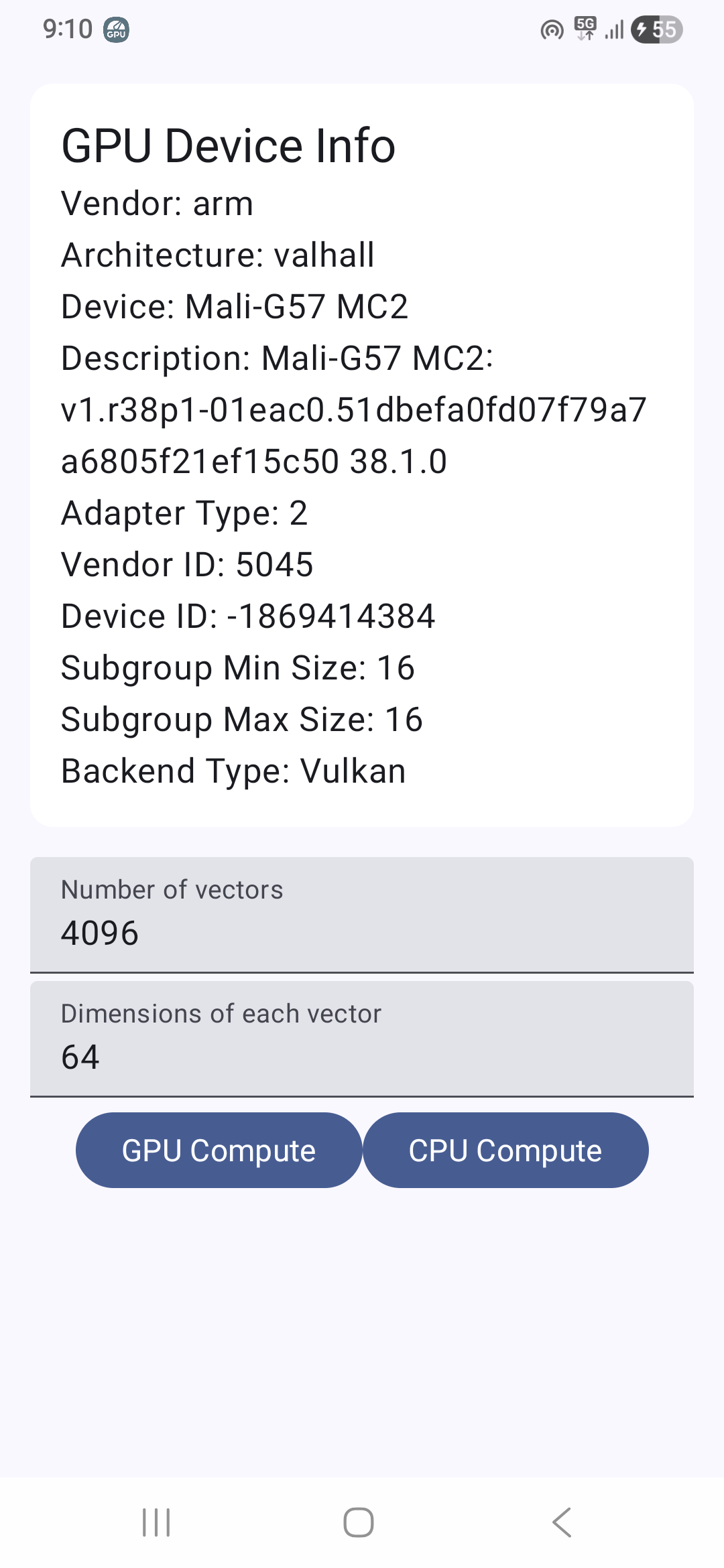
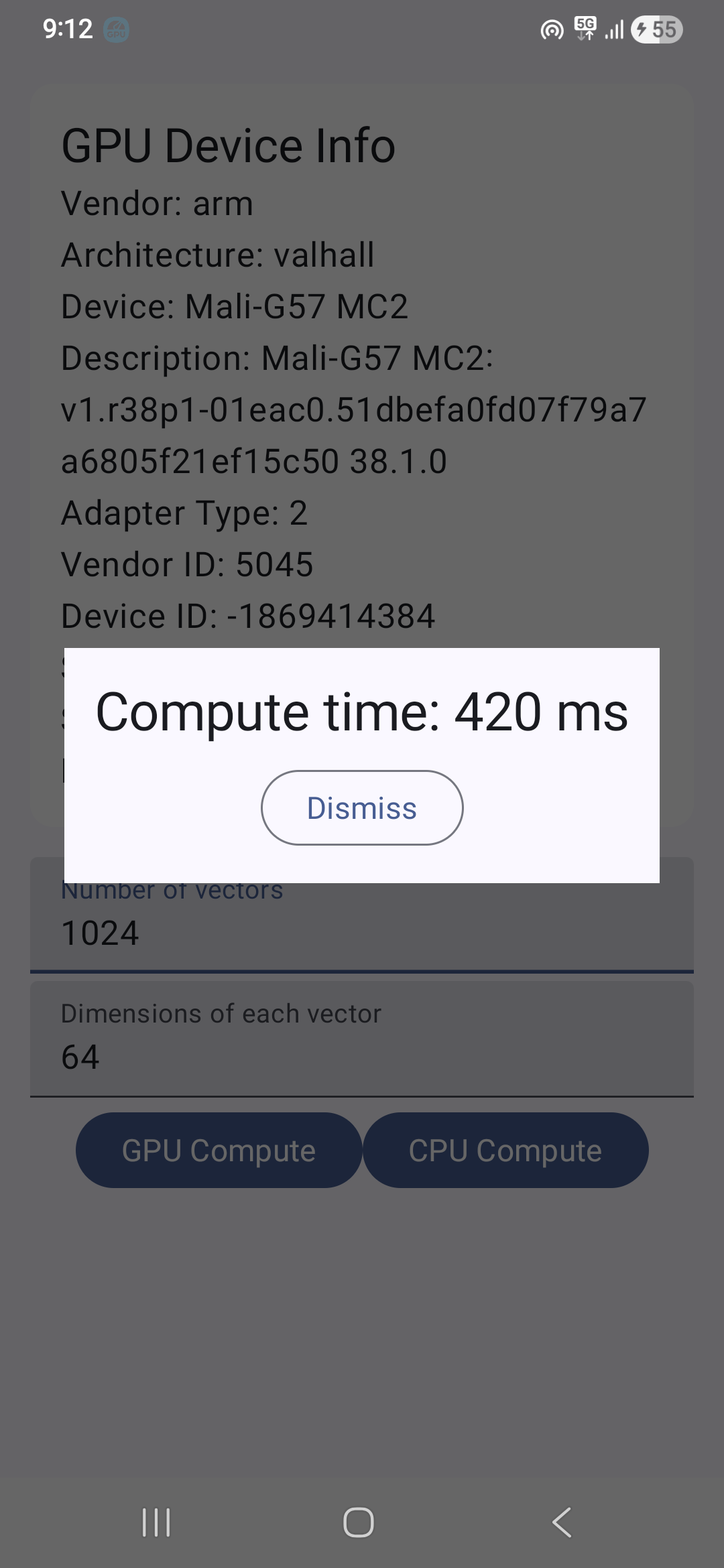
We measure the time taken between calling execute() and when onComplete is called and show it in an alert dialog in the demo app.
App Screenshots
 |  |
|---|